
How to Set Up a Smart Speaker for Beginners Step-by-Step
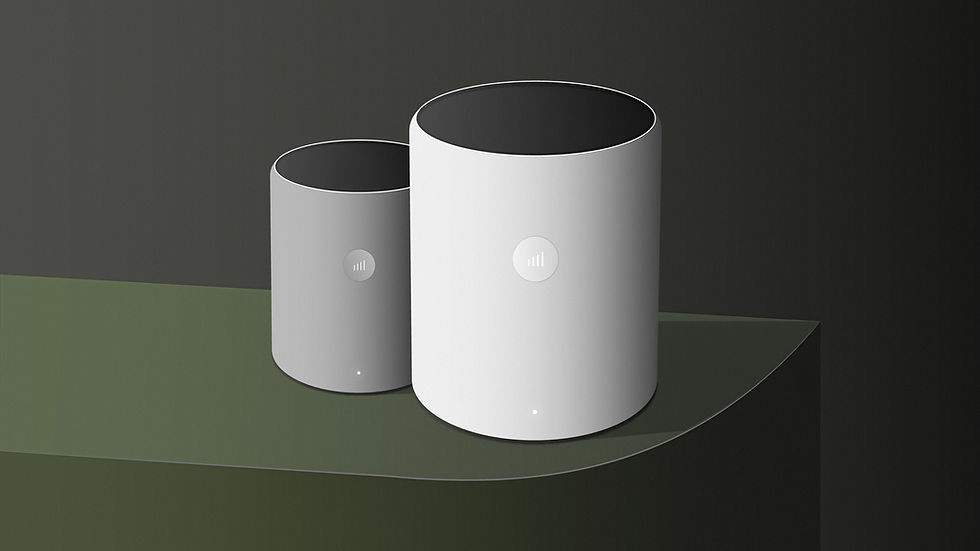
Smart speakers have revolutionised how we interact with technology at home. Whether you're asking for the weather, playing music, controlling smart devices, or setting reminders, these voice-activated assistants make life more convenient. But if you're new to the world of smart speakers, the setup process might feel a bit intimidating.
This smart speaker setup guide is designed step by step specifically for beginners. We’ll walk you through everything—from unboxing to voice commands—so you can start enjoying your smart speaker with confidence.
Understanding Your Intent: Why Set Up a Smart Speaker?
Before diving into the setup, it helps to clarify your intent. Knowing what you want from your smart speaker will guide how you configure it and which features to prioritise.
🎯 Common Reasons to Use a Smart Speaker
Voice-controlled music and entertainment
Smart home automation (lights, thermostats, locks)
Reminders, alarms, and timers
Weather updates and news briefings
Hands-free calling and messaging
Language translation and general knowledge
🧭 Matching Setup to Purpose
If your main goal is music playback, focus on audio quality and streaming services. If you're building a smart home, prioritise device compatibility and network stability. Understanding your intent ensures your setup aligns with your needs.
Step 1: Unbox and Identify Components
Start by unpacking your smart speaker. Most models include:
The smart speaker unit
Power adapter or cable
Quick-start guide or instruction manual
📦 Check for the Following
Speaker Ports and Buttons
Power port
Microphone mute button
Volume controls
Action or reset button
Wi-Fi Requirements
Ensure you have a stable Wi-Fi connection
Know your network name and password
Step 2: Choose the Right Location
Placement affects performance and accessibility.
🏠 Ideal Spots for Your Smart Speaker
Central Location
Place it where you spend the most time (e.g., kitchen, living room)
Avoid corners or enclosed spaces
Away from Noise
Keep it away from TVs, radios, or loud appliances
Reduces false triggers and improves voice recognition
Near Power Source
Ensure easy access to a plug
Avoid using extension cords if possible
Step 3: Power On and Download the Companion App
Plug in your smart speaker and wait for it to power up. Most devices will indicate readiness with a light or sound.
📲 Download the App
Popular Smart Speaker Apps
Amazon Alexa app (for Echo devices)
Google Home app (for Nest and Google speakers)
Apple Home app (for HomePod)
Other brand-specific apps (e.g., Sonos, Bose)
App Permissions
Allow access to Bluetooth, location, and microphone
These permissions enable full functionality
Step 4: Connect to Wi-Fi and Sign In
Your smart speaker needs internet access to function properly.
🌐 Wi-Fi Setup
Steps to Connect
Open the companion app
Select “Add Device” or “Set Up New Device”
Choose your speaker model
Follow on-screen instructions to connect to Wi-Fi
Troubleshooting Tips
Restart router if connection fails
Ensure your phone is on the same network
Move speaker closer to router during setup
🔐 Sign In to Your Account
Use your Amazon, Google, or Apple ID
This links your preferences, music services, and smart home device
Step 5: Personalize Your Settings
Once connected, it’s time to tailor your smart speaker to your lifestyle.
⚙️ Customize Preferences
Language and Region
Set your preferred language
Choose your time zone and location for accurate weather and news
Voice Recognition
Train the speaker to recognize your voice
Enables personalized responses and routines
Wake Word
Choose a wake word (e.g., “Alexa”, “Hey Google”, or “Siri”)
Avoid words that may trigger the speaker accidentally
Step 6: Link Music and Streaming Services
Smart speakers shine when paired with your favourite entertainment platforms.
🎵 Supported Services
Common Music Platforms
Spotify
Apple Music
Amazon Music
YouTube Music
Pandora
How to Link Accounts
Open the app
Navigate to “Music & Media” or “Services”
Select your preferred platform
Sign in and authorize access
Step 7: Connect Smart Home Devices
If your intent includes home automation, this step is essential.
🏡 Compatible Devices
Smart lights (Philips Hue, LIFX)
Thermostats (Nest, Ecobee)
Smart plugs and switches
Door locks and security cameras
🔗 Linking Devices
Using the App
Go to “Devices” or “Add Device”
Select the type of device
Follow prompts to connect and name each device
Creating Groups and Rooms
Organize devices by room (e.g., “Living Room Lights”)
Enables voice commands like “Turn off bedroom lights”
Step 8: Set Up Routines and Automations
Routines allow your smart speaker to perform multiple actions with a single command.
⏰ Examples of Useful Routines
“Good morning”: Turn on lights, read weather, play news
“Bedtime”: Dim lights, play calming music, set alarm
“Leaving Home”: Turn off devices, lock doors, adjust thermostat
🧠 How to Create a Routine
Open the app
Navigate to “Routines” or “Automations”
Choose a trigger (voice command, time, location)
Add actions and customize order
Step 9: Explore Voice Commands
Now that your smart speaker is set up, start using it!
🗣️ Basic Commands for Beginners
Everyday Tasks
“What’s the weather today?”
“Set a timer for 10 minutes.”
“Play jazz music.”
“What’s on my calendar?”
Smart Home Control
“Turn on the kitchen lights.”
“Set the thermostat to 21 degrees.”
“Lock the front door.”
Fun and Learning
“Tell me a joke.”
“Translate ‘hello’ to French.”
“How far is the moon?”
Step 10: Maintain and Update Your Smart Speaker
Keep your device running smoothly with regular maintenance.
🔄 Software Updates
Most updates install automatically
Check the app for firmware status
🧹 Cleaning and Care
Wipe with a dry cloth
Avoid moisture and extreme temperatures
🧑💻 Privacy Settings
Review microphone and data sharing options
Enable or disable voice recordings as desired
Common Mistakes to Avoid
Even beginners can sidestep frustration with a few tips.
❌ Skipping the App Setup
The app unlocks full functionality
Don’t rely on voice setup alone
❌ Poor Placement
Avoid placing the speaker near noisy appliances
Keep it away from walls and corners
❌ Forgetting to Link Services
Music, calendars, and smart devices need to be connected manually
Check app settings regularly
Final Checklist: Smart Speaker Setup Guide Step-by-Step
Here’s a quick summary to ensure you’ve covered everything:
✅ Unbox and identify components
✅ Choose the right location
✅ Download and open the companion app
✅ Connect to Wi-Fi and sign in
✅ Personalize settings and wake word
✅ Link music and streaming services
✅ Connect smart home devices
✅ Create routines and automations
✅ Explore voice commands
✅ Maintain and update your speaker
Conclusion
Setting up a smart speaker for beginners doesn’t have to be complicated. With this smart speaker setup guide step-by-step, you’re now equipped to unlock the full potential of your device. Whether you're using it for entertainment, productivity, or home automation, your smart speaker is ready to make life easier—one voice command at a time.
And to discover our best smart solutions, we would love you to visit our Amazon affiliate links below.


Comments